This is part 2 of the How to manage multiple environments with Terraform blog post series. In the first part of the series, you saw how to use workspaces to manage multiple environments with Terraform. In this post, I’ll show you how to manage multiple environments with Terraform using branches in your version control system (we’ll focus on Git in this blog post):
- Setting up environments using branches
- Switching between environments
- Using different configurations in each environment
- Using different backends in each environment
- Using different versions in each environment
- Working with multiple modules
- Advantages of branches
- Drawbacks of branches
- Conclusion
Setting up environments using branches
Let’s start with the same EC2 instance code as in the workspaces example in part 1 of this series:
provider "aws" {
region = "us-east-2"
}
resource "aws_instance" "example" {
ami           = "ami-0fb653ca2d3203ac1"
instance_type = "t2.micro"
tags = {
Name = "example-server"
}
}
To deploy this code in the dev environment, the first step is to create a dev branch:
$ git checkout -b dev
Switched to a new branch 'dev'
Now you’re ready to deploy by running apply:
$ terraform apply
Terraform will perform the following actions:
# aws_instance.example will be created
+ resource "aws_instance" "example" {
+ ami                          = "ami-0fb653ca2d3203ac1"
+ instance_type                = "t2.micro"
(...)
}
Plan: 1 to add, 0 to change, 0 to destroy.
Do you want to perform these actions?
Terraform will perform the actions described above.
Only 'yes' will be accepted to approve.
Enter a value:
If everything looks good, enter yes, and Terraform will deploy the server. Commit your changes to the dev branch:
$ git add .
$ git commit -m "Set up dev environment"
$ git push origin dev
OK, now it’s time to work on the staging environment. First, create a new branch:
$ git checkout -b stage
Switched to a new branch 'stage'
Run apply to deploy:
$ terraform apply
And then commit your changes to the stage branch:
$ git add .
$ git commit -m "Set up stage environment"
$ git push origin stage
Finally, repeat the entire process for production: use git checkout to create the prod branch, run apply, and then use git to add, commit, and push your changes to the prod branch.
At this point, you have three environments (three branches), with one EC2 instance deployed in each one. Unfortunately, those three branches mean you now have three full copies of your Terraform code that you have to manage: that’s effectively 100% code duplication for each environment you add, which can be a significant maintenance challenge.
Switching between environments
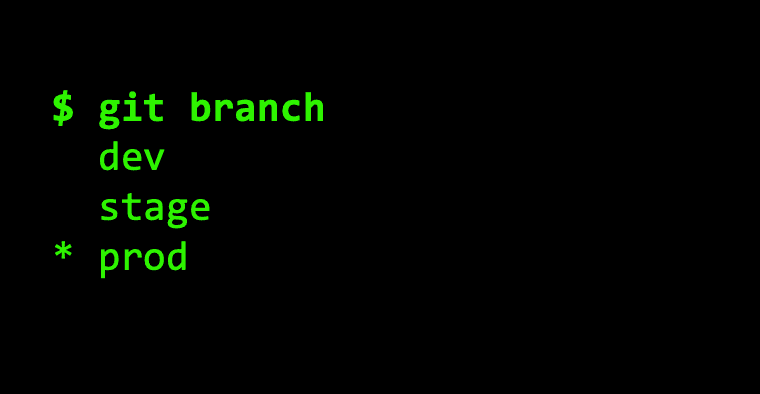
To switch between environments, you need to switch between branches using CLI commands. You can see all your branches using the git branch command:
$ git branch
main
dev
stage
* prod
You can switch to a different branch using the git checkout command:
$ git checkout dev
Switched to branch 'dev'
Now, any command you run on this code (e.g., terraform apply) will run against the dev branch.
Note that with branches, it’s easier to see what’s deployed in each environment than with workspaces, as each environment is in its own branch. That said, browsing or making changes across multiple environments is still a bit tedious, as you have to repeatedly switch branches.
Using different configurations in each environment
When you use branches, there is no native mechanism built into Terraform to tell you what branch you’re on (there’s no terraform.workspace equivalent for branches). That means you have to use a workaround. There are a variety of options.
One option is to change the code in each branch. For example, in the dev branch, you might update the code to include -dev in the name tag:
resource "aws_instance" "example" {
ami           = "ami-0fb653ca2d3203ac1"
instance_type = "t2.micro"
tags = {
Name = "example-server-dev"
}
}
Whereas on the prod branch, you might update the code to include -prod in the name tag and change the instance_type to m4.large:
resource "aws_instance" "example" {
ami           = "ami-0fb653ca2d3203ac1"
instance_type = "m4.large"
tags = {
Name = "example-server-prod"
}
}
This is an easy approach to use at first, but if your Terraform configurations are slightly different on every branch, then porting changes across those branches becomes much more difficult: e.g., if you refactored the aws_instance code in dev, doing the same refactoring in stage and prod without accidentally losing some of the custom changes in stage and prod will be tricky and error prone.
A better approach is to externalize the environment-specific changes to separate files. For example, you could add two input variables to your code:
variable "instance_type" {
description = "The instance type to use"
type        = string
}
variable "instance_name" {
description = "The name to use for the instance"
type        = string
}
And update the code to use these variables:
resource "aws_instance" "example" {
ami           = "ami-0fb653ca2d3203ac1"
instance_type = var.instance_type
tags = {
Name = var.instance_name
}
}
Now you can add a variable definition file called terraform.tfvars with different values in each branch. For example, in dev, terraform.tfvars could contain the following:
instance_type = "t2.micro"
instance_name = "example-server-dev"
And in prod, terraform.tfvars could contain the following:
instance_type = "m4.large"
instance_name = "example-server-prod"
This gives you a way to configure the code differently in different environments, while keeping the underlying Terraform code (.tf files) mostly the same across branches.
Using different backends in each environment
To configure the backend differently in each environment, you can configure the backend block differently in each branch. For example, in the dev branch, you could configure the S3 bucket dev-example-bucket as a backend as follows:
terraform {
backend "s3" {
bucket = "dev-example-bucket"
key    = "mysql/terraform.tfstate"
region = "us-east-2"
}
}
And in the stage branch, you could configure the S3 bucket stage-example-bucket as a backend as follows:
terraform {
backend "s3" {
bucket = "stage-example-bucket"
key    = "mysql/terraform.tfstate"
region = "us-east-2"
}
}
Typically, your best bet is to put the backend configuration in its own file — e.g., backend.tf—so that it’s externalized from the rest of your Terraform code (similar to how you externalized variable changes to a terraform.tfvars file), making it clearer which files should be different between branches and which ones should be the same.
Using different versions in each environment
As with the workspaces example in part 1 of this series, imagine your company took your EC2 instance code and put it into an ec2-instance module that you used as follows:
module "server" {
source = "github.com/org/repo//modules/ec2-instance?ref=v1.0.0"
# (... some params ...)
}
If you wanted to use different versions of this module in different environments, since source URLs don’t support variables, interpolations, or references, the only option is to hard-code the source URL in each branch to a different value. For example, in dev, you could set the ref parameter to v2.0.0 to test out a new version:
module "server" {
source = "github.com/org/repo//modules/ec2-instance?ref=v2.0.0"
# (... some params ...)
}
Whereas in prod, you’d keep it at v1.0.0 until the testing in dev was done:
module "server" {
source = "github.com/org/repo//modules/ec2-instance?ref=v1.0.0"
# (... some params ...)
}
Although you could externalize variable changes (terraform.tfvars) and backend changes (backend.tf), there’s no way to externalize version changes to a separate file, as source URLs do not support any variables, interpolation, or references. The same is true if you wanted to use different versions of different Terraform providers (in a required_providers block) or different versions of Terraform itself (via the required_version parameter) in different environments: none of these support any sort of variables, interpolation, or references, so the only option is to change the Terraform code (.tf files) directly. This makes it tricky and error prone to port changes from one environment to another (from one branch to another).
Working with multiple modules
Working with multiple modules with branches is exactly the same as with workspaces: the options for sharing data between modules or deploying multiple modules concurrently are very limited. See Working with multiple modules in part 1 of this series for the details.
Advantages of branches
- A native, built-in feature of version control, so no extra tooling is required.
- Works with Terraform Cloud and Terraform Enterprise.
- Configure environments differently using
terraform.tfvarsfiles. - Navigating environments and understanding what’s deployed is easier.
- Configure separate backends for each branch to isolate environments.
- Configure different versions in different environments.
Drawbacks of branches
- A huge amount of code duplication makes maintenance a nightmare.
- Propagating major changes across environments is tricky and error prone, especially if you don’t externalize differences between branches into separate files (note: version differences cannot be externalized) .
- Can only share data between modules using
terraform_remote_state, which makes the modules tightly coupled and hard to test and reuse. - Working with multiple modules is manual and error-prone.
Conclusion
You’ve now seen how to manage multiple environments with Terraform by using branches. Let’s now move on to part 3of the series, where you’ll learn how to manage multiple environments with Terraform using Terragrunt.
Your entire infrastructure. Defined as code. In about a day. Gruntwork.io.



-
No-nonsense DevOps insights
- Expert guidance
-
Latest trends on IaC, automation, and DevOps
-
Real-world best practices