How to Build a Well-Architected AWS Landing Zone with OpenTofu/Terraform
The moment you need to scale your cloud infrastructure beyond a few services is when you need a well-architected landing zone. Specifically for AWS, an account represents one of the most basic and foundational isolation boundaries for workloads. For simple projects, starting simple with a single AWS account is common, but most businesses would eventually need to scale to multiple AWS accounts to accommodate their growth securely.
This guide covers the concepts, the architectural decisions, and a concrete step-by-step sequence for setting one up with OpenTofu/Terraform.
A landing zone solves this. It is a multi-account AWS environment, preconfigured with controls, tooling, and best practices for identity, networking, logging, and governance, so you can run workloads safely at scale.
There are different pathways for building your landing zone, and the architectural decisions made early on tend to be important down the line. In this blog, we will look at the components and design choices that will help you create a landing zone as your foundation for scalability and security.
What we will cover
- What is an AWS Landing Zone?
- Core components of a landing zone
- How to set up an AWS landing zone with OpenTofu/Terraform (step by step)
- Build options
- Architectural decisions that make a landing zone scalable and maintainable
- Common anti-patterns to avoid
- How Gruntwork can help you build a well-architected landing zone
- Key takeaways
What is an AWS Landing Zone?
The landing zone is a concept found across most cloud providers, serving as the foundational layer that enables workloads to be deployed safely at scale, with organizational policies in place and in accordance with best practices.
Specifically for AWS, a Landing Zone is a well-architected, multi-account AWS environment that is scalable and secure. It gives you a baseline for identity, security, networking, observability, governance, account structure, and the ability to vend new accounts on demand.
A landing zone is more than a set of AWS accounts. It is the combination of:
- An account structure built on AWS Organizations with organizational units (OUs)
- Baseline identity and access management
- A network design covering connectivity, DNS, and egress
- Centralized observability and audit trails
- Security and governance through guardrails and policies
- An automated way to provision new accounts with consistent configurations
Why do you need a Landing Zone?
If you run more than one or two AWS accounts, you need a landing zone of some kind. A few reasons:
Blast radius and resource isolation: Each AWS account is an isolation boundary, ensuring that failures or disruptions don’t cascade to other environments. This isolation improves the security posture by reducing the blast radius of issues and allowing granular permission boundaries. Moreover, different sets of accounts are used for different environments, such as production, development, and testing, allowing developers to experiment without risking regressions in production setups.
Separation of duties: Security, networking, and workload teams need clear ownership boundaries. A landing zone gives each team the accounts and permissions they need to manage their respective domains.
Compliance: Regulated workloads often need dedicated accounts, specific logging, and documented controls. A well-structured landing zone makes compliance easier by defining clear boundaries, controls, and tracking mechanisms for regulatory purposes.
Simplified cost attribution: This segregation also provides more transparent per-account billing, plus tag policies give you clean cost views.
Speed and onboarding: A mature landing zone can produce a new, fully provisioned and governed account in a timely fashion. Documented patterns, standard permission sets, and self-service account provisioning make onboarding new users and workloads easier.
Core components of a landing zone
Before we get to architectural choices, here are the pieces that make up a landing zone.
AWS Account
The most basic box boundary for creating and hosting AWS resources.
AWS Organizations
AWS Organizations is a service that lets you create, organize, govern, and manage multiple AWS accounts in a centralized way.
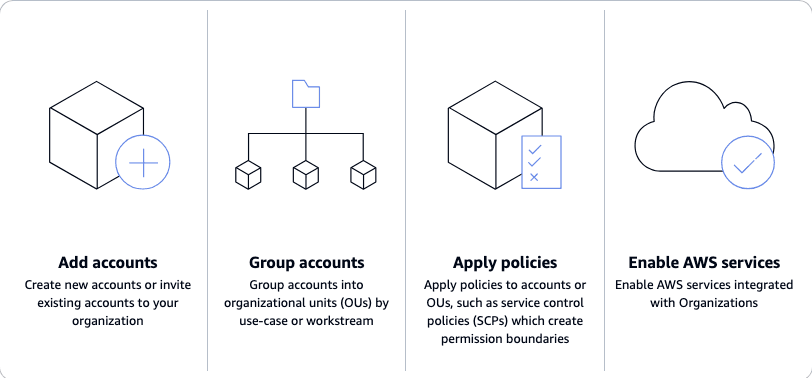
Source: What is AWS Organizations?
The management account
The management account is the parent of every other account in the setup. It handles consolidated billing, applies cross-account policies, and enforces global security policies. This account should not run workloads or be used for day-to-day engineering access. Check out best practices for the management account.
Member Accounts
Workloads, applications, and other tooling are deployed into member AWS accounts. Member accounts are categorized into Organizational Units (OUs) that share common characteristics.
Organizational units and structure
Organizational units (OUs) are logical groupings of accounts, allowing management of common policies and tags.
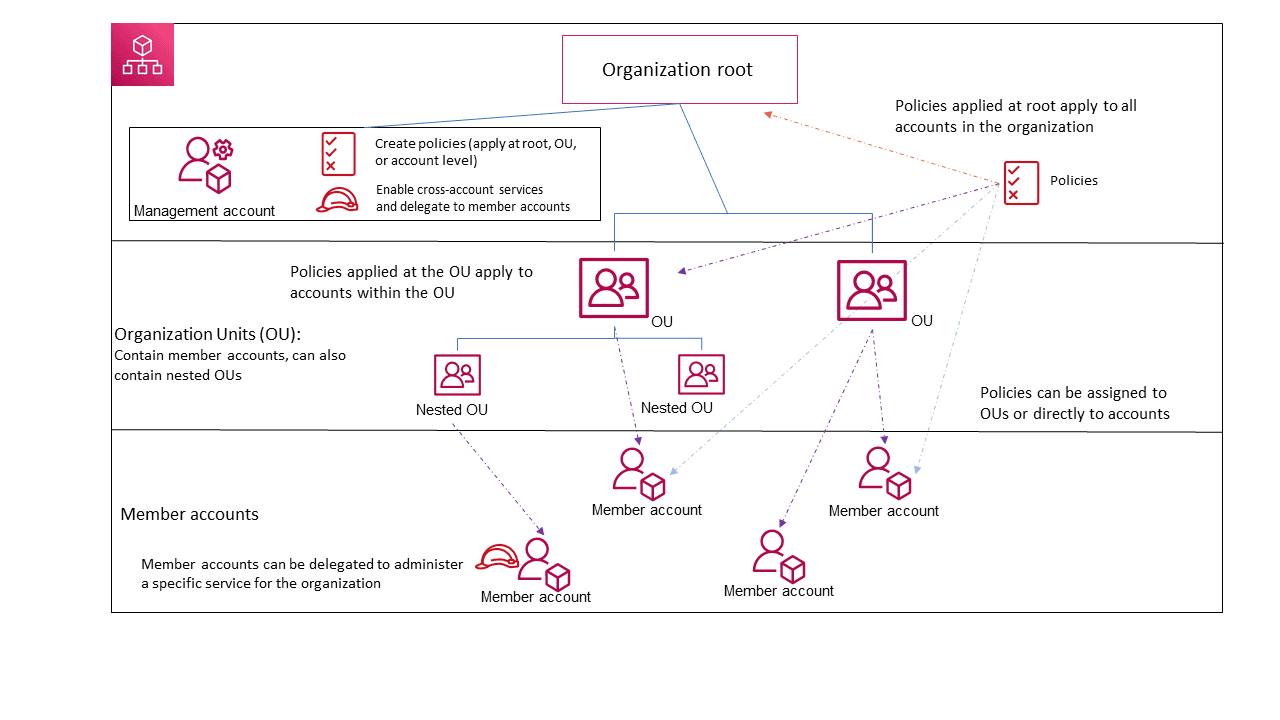
Source: AWS Organizational units and structure
Common OU examples include:
- Security OU: Log Archive, Audit, and Security tooling accounts
- Infrastructure OU: Networking, shared services, DNS, Identity accounts
- Workloads OU: production and non-production application accounts, often split into sub-OUs
- Sandbox OU: experimentation accounts with tighter spending limits and looser controls
- Suspended OU: accounts pending decommissioning, with deny-all SCPs attached
Identity and access management
Most landing zones use AWS IAM Identity Center as the central authentication layer. Identity Center typically integrates with an external identity provider, such as Okta, Microsoft Entra ID, or Google Workspace, for the user lifecycle. Permission sets define what users can do and are attached to groups for specific accounts.
Networking
The network layer shows the biggest design variation across landing zones. This layer commonly includes among others:
- A central hub-and-spoke architecture (Transit Gateway) in a network account. This also allows connection to on-premises systems.
- Workload VPCs attached to the hub and spoke.
- Traffic inspection mechanics.
- Hybrid DNS resolution.
- Centralized VPC private endpoints for cost optimization.
Check out the guide Building a Scalable and Secure Multi-VPC AWS Network Infrastructure for more details.
Logging and audit
CloudTrail at the organization level captures API activity across every account. AWS Config records resource state and evaluates rules. Both are centralized in a dedicated account, often with Object Lock and cross-region replication.
An Audit-specific account gets read-only access to those logs, plus aggregated findings from other security services such as Security Hub and GuardDuty from every member account.
Account vending
A mechanism to create new accounts with a baseline setup already applied. In AWS Control Tower, this is Account Factory. In Terraform-managed environments, it might be Account Factory for Terraform (AFT) or a solution like Gruntwork AWS Account Factory, working entirely in a PR-driven GitOps workflow,
Automation and Infrastructure as Code (IaC)
None of the above stays static after day one: accounts get vended, guardrails change, baselines get patched. Defining it all as code, reviewed through pull requests instead of applied by hand in the console, is what keeps a landing zone auditable and repeatable as it evolves. See Manage the landing zone with IaC below for what that looks like in practice, or The Production-Grade Infrastructure Checklist for the same idea applied to a single piece of infrastructure rather than the accounts layer.
How to set up an AWS landing zone with OpenTofu/Terraform (step by step)
The steps below are the same four building blocks covered above, in the order you'd actually deploy them. Each one links to the reference docs for the exact OpenTofu/Terraform: the goal here is the sequence and the reasoning, not a copy-paste module.
1. Create the organization and organizational units
Enable AWS Organizations and create the OUs that will hold your accounts: a Security OU, an Infrastructure OU, a Workloads OU, and a Sandbox OU, mirroring the design covered earlier in this post. This is a one-time structural decision. Get the OU boundaries right before you start attaching policies or vending accounts against them.
2. Attach a guardrail with a Service Control Policy
Service Control Policies sit at the organization or OU level and cannot be overridden by account-level permissions. Use them for non-negotiables, such as denying root-user actions, blocking unused regions, or preventing CloudTrail or GuardDuty from being disabled, and attach them at the OU level so every account under that OU inherits the restriction automatically.
3. Centralize logging
Enable an organization-wide CloudTrail so every account's API activity lands in one auditable, tamper-evident bucket, typically in a dedicated logs account rather than the management account.
4. Vend new accounts without repeating steps 1–3 by hand
Once the baseline exists, the repetitive part is creating new accounts that inherit the same OU, guardrails, and logging every time. This is what an account factory automates. With Gruntwork Account Factory, you don't hand-write the OpenTofu/Terraform for each new account: you generate a request through the Developer Portal (or a downloadable request form), which opens a pull request against an account-<Name>.yml file. Merging that PR runs Gruntwork Pipelines, which provisions the account under AWS Control Tower, attaches it to the right OU (and therefore the SCP from step 2), enables GuardDuty, Macie, Config, and CloudTrail, configures IAM Identity Center permission sets instead of long-lived IAM users, and applies the CIS AWS Foundations Benchmark baseline, typically live within 10–45 minutes of merge.
For the exact configuration schema and setup steps:
- Prerequisites: what needs to be in place before installing Account Factory
- Setup & Installation: how Account Factory gets wired into a Pipelines repository
- Vending a New AWS Account: the end-to-end request-to-live-account walkthrough
- Configuration Reference: the full YAML schema, including multi-account and multi-environment vending
Whether you build this account-vending step yourself, use AWS's Account Factory for Terraform, or use Gruntwork's, the underlying pattern is the same: guardrails defined once at the OU level, inherited automatically by every account at creation time rather than through manual follow-up.
Build options
You have several options for building a landing zone on AWS, depending on your needs and preferences.
AWS Control Tower
AWS Control Tower is a managed service from AWS. It sets up a landing zone rather quickly, but comes with opinionated defaults. Good for most organizations starting their multi-account journey. Advanced scenarios can be handled through Customizations for Control Tower (CfCT).
Control Tower is quick to set up, but it may be limiting in certain scenarios if you need extensive customization. See Gruntwork and AWS Control Tower for how Gruntwork's approach relates to it.
Landing Zone Accelerator on AWS (LZA)
Landing Zone Accelerator on AWS is an AWS-supported open-source solution. It is configuration-file driven and written in CDK. It extends Control Tower with deeper controls for regulated industries. See Gruntwork vs AWS Landing Zone Accelerator (LZA) for a full comparison.
Gruntwork AWS Account Factory and Accelerator
Gruntwork takes a different approach: extending AWS Control Tower with a OpenTofu/Terraform-native account vending and baseline system. Gruntwork AWS Account Factory uses OpenTofu/Terraform and Terragrunt to codify everything Control Tower normally does through the console. Through Gruntwork Account Factory, you can ensure all new AWS accounts comply with the CIS AWS Foundations Benchmark out of the box.
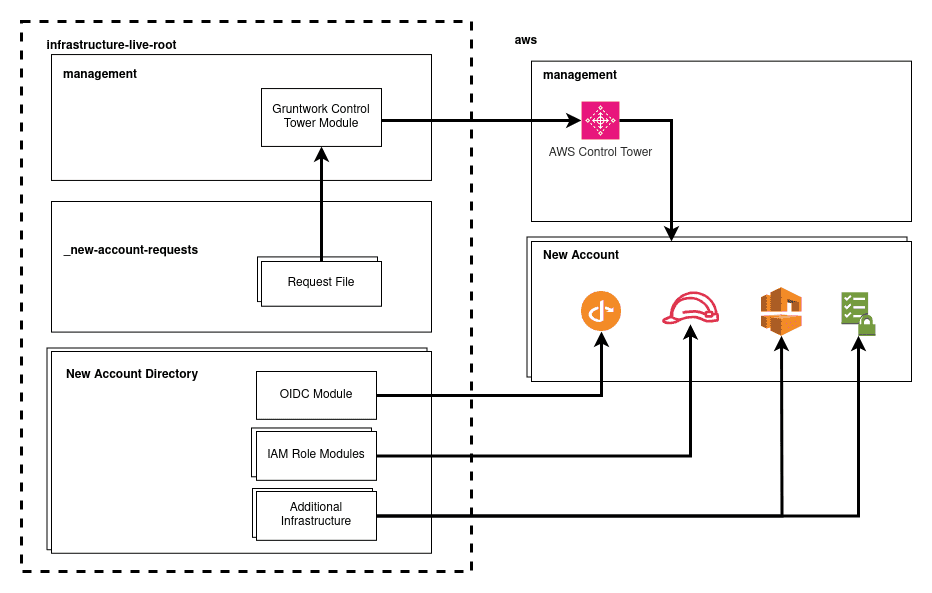
Source: Gruntwork Account Factory Architecture
Account creation is requested via YAML files or GitHub Actions, reviewed via pull requests, and applied via Gruntwork Pipelines. Every new account comes with a baseline that includes GuardDuty, Security Hub, Macie, best-practice VPC configurations, and least-privilege IAM roles with GitHub OIDC for CI/CD.
The broader Gruntwork AWS Accelerator goes further. It bundles the Account Factory with the AWS Platform Architecture (Gruntwork's well-architected landing zone reference design), 300+ commercially maintained Terraform and OpenTofu modules, an IaC Management Platform built on Terragrunt, and guided setup support.
This option suits teams that want a Terraform-first landing zone without building everything from scratch and want commercial support around the patterns they adopt.
Custom-built
You build the landing zone yourself using AWS Organizations, IaC, and your own automation. This approach is recommended only if you have specific requirements that the other options cannot meet, and you have the team to maintain it long-term.
Custom landing zones are the most expensive option over time. You own the patterns, the upgrades, the documentation, and the gaps. Every new AWS service that requires integration becomes a new project for the team that owns the landing zone.
A comparison across dimensions:
| Dimension | Control Tower | LZA | Gruntwork Accelerator | Custom |
|---|---|---|---|---|
| IaC | Limited | CDK | OpenTofu/Terraform | Whatever you build |
| Maintenance | AWS-managed | Self-managed | Vendor-supported | Self-managed |
| Customization | Low to medium | High | High | Very High |
| Ideal for | Most teams starting out | Regulated industries on CDK | Terraform-first teams, looking for managed offerings | Edge cases |
For many organizations, starting with Control Tower could be sufficient. Consider moving to LZA if regulatory requirements push you there and your team prefers CDK. Choose the Gruntwork Accelerator if you want a Terraform-native landing zone and a managed offering backed by commercial support. Choose to go fully custom if none of the above can meet your needs.
Architectural decisions that make a landing zone scalable and maintainable
The components above are common to every landing zone, but a few key decisions differentiate landing zone implementations.
OU design models
OUs’ purpose is to apply the same guardrails to a group of accounts, so you have to design OUs around the policies you apply. For example, production workloads naturally get the strictest guardrails, while sandboxes get looser ones.
A common starting layout: Security OU for security, governance, and compliance-related accounts, Infrastructure OU for core network and shared services accounts, and Workloads OU split into different environments, such as Prod and Non-Prod sub-OUs. Other common OUs include Sandbox for experimentation, and a Suspended with deny-all SCPs for accounts pending cleanup. Keep it simple to begin with, and from there, you add what your organization actually needs. AWS allows five levels of nesting, but you rarely need more than two or three.
Account vending considerations and flow
AWS Account Factory, Account Factory for Terraform, and Gruntwork Account Factory all solve this problem in slightly different ways. They provide a way to create a new AWS account in an easy, compliant, and automated fashion with pre-approved defaults.
The baseline applied at creation should include:
- Security services and controls applied according to your org needs. For example: CloudTrail, Config, and GuardDuty enabled.
- Networking base deployed, including VPC creation or Transit Gateway attachment provisioned for network connectivity.
- Identity access federation configured with IAM Identity Center, and permission sets attached. Default IAM roles for operations, security, and break-glass.
- Pre-configured cost and budget alerts and tag enforcement according to the tagging strategy.
Centralization vs decentralization
There are several ways to organize your landing zone setup across multiple AWS accounts. Naturally, centralization helps to group and manage things at scale consistently. For networking, a central Transit Gateway simplifies connections between accounts and on-premises systems, while centralized VPC endpoints could reduce cost and management overhead. Additionally, a central place to send all your logs and metrics makes monitoring and observability easier.
Centralization often comes with tradeoffs and costs, though. For example, sending all your logs and metrics from various regions to a central location could incur additional costs, and centralizing egress traffic for inspection could introduce latency. Anything you centralize becomes a dependency every workload inherits, and the team that owns it becomes a bottleneck. In enterprise settings, centralizing components could bring inflexibility and friction for internal teams with different needs.
It’s not easy to give abstract advice on centralization vs decentralization of the different aspects of a landing zone because the specific circumstance and details matter for such decisions. Still, architects should be thinking about the pros and cons of each approach when making such decisions. A guideline that usually works is to centralize undifferentiated infrastructure (network backbone, DNS, logging, identity) wherever you need consistency, auditability, and a single source of truth, and decentralize application-specific resources or cases where you want to reduce the blast radius and provide more autonomy and customization.
Guardrail layers
Stack guardrail layers on top of each other for optimal security coverage to enforce policies across your various workloads and AWS accounts. Service Control Policies (SCPs) sit at the top level and cannot be overridden by account-level permissions. Be careful not to over-restrict your SCPs, as that could block legitimate work. Use them for the non-negotiables, such as:
- Deny access to AWS regions your organization does not use
- Block the use of the root user for everyday operations
- Prevent disabling critical services like CloudTrail, Config, or GuardDuty
- Block public unstructured and public endpoints like S3 buckets, unless explicitly allowed
- Deny IAM user creation in workload accounts (force federation)
- AWS Config Rules detect drift and misconfigurations. You can use them to catch the next level of missconfigurations. Example: detect unencrypted S3 buckets.
- Proactive controls can check your resources before they get deployed, to catch compliance violations early on. Example: reject a stack that creates an unrestricted security group.
Manage the landing zone with IaC
The landing zone itself is infrastructure and you should treat it like any other IaC project.
- Version-control OU structure, SCPs, baselines, and account configurations.
- Use Terraform, OpenTofu, CDK, CloudFormation, or LZA configuration files.
- Apply changes through a pipeline, not the console.
- Peer review every change.
- Maintain a clear audit trail of who changed what and when.
Baseline updates are particularly tricky. When you add a change that should be propagated across multiple accounts, it becomes its own project. Tools like Gruntwork Patcher exist specifically to keep infrastructure up to date as underlying patterns evolve.
A landing zone is a project that you will need to maintain and operate long-term. Managed solutions, such as the Gruntwork Landing zone, can set you up for success and equip you with best practices on operating your setup with IaC.
Networking Design
Networking mistakes are difficult to reverse since a lot of things rely on your networking setup. You have to plan and think about:
- CIDR design and overlapping considerations across accounts, regions, and on-premises networks. Leverage tools such as IP Address Manager (IPAM) to make your life easier.
- Consider the pros and cons of a hub-and-spoke model vs. a peer-to-peer model. In most cases, a centralized Transit Gateway setup will be simpler and easier to maintain, unless you have specific requirements (e.g., extreme latency needs) that can’t be satisfied.
- Plan for centralized network security infrastructure that inspects and filters traffic across multiple environments.
- Consider centralized VPC private endpoints. Per-VPC endpoints add up quickly in cost at scale.
- Plan cross-region and hybrid connectivity up front.
Identity: federated, short-lived, auditable
- IAM Identity Center is the authentication layer. Federate with your corporate IdP for user lifecycle.
- Define permission sets by job function (Developer, SecurityAuditor, NetworkOperator).
- Attach permission sets at the OU or account level. Group-based access simplifies audits.
- Never issue long-lived IAM user credentials in workload accounts.
- Define a break-glass procedure for emergency access, with its own alerting and audit trail.
Observability setup
Another key aspect of managing large-scale landing zones is a robust observability strategy. Consider the cost of centralization compared to the benefits it provides, such as unified view for operations and pick your preferred tooling for centralizing logs, metrics, and traces.
Tagging strategy
A well-structured tagging strategy can help and simplify many downstream management and operational tasks such as patch management, cost attribution, resources visibility, and clean-up procedures.
- Decide on required tags: environment, cost center, owner, data classification, application.
- Enforce with Tag Policies at the organization level and SCPs.
- Use Cost Categories and Cost Allocation Tags for billing views.
- Review tag coverage regularly. Untagged resources are untracked costs and orphaned assets.
Anti-patterns to avoid
- Running the landing zone from the AWS console. Every manual change in this case is drift that can’t be necessarily easily governed and reverted.
- Over-restrictive SCPs. If teams cannot get work done within the landing zone, they will work around it.
- Non-automated steps during new account provisioning: If the baseline requires manual steps instead of automation, it will diverge.
- Treating the landing zone as a one-time implementation. A landing zone that is not actively maintained becomes a source of technical debt.
How Gruntwork can help you build a well-architected landing zone
The patterns above are well known, but implementing them takes time. Most teams do not have time to design the perfect OU structure, codify every possible guardrail they will need, and write Terraform for every baseline service.
Gruntwork is built for teams that want a well-architected landing zone without the heavy lifting for things already solved.
Gruntwork AWS Account Factory extends AWS Control Tower with OpenTofu/Terraform-native account vending. New accounts are requested through YAML files or GitHub Actions, reviewed via pull requests, and provisioned through Gruntwork Pipelines. Every new account comes with a baseline that includes security tooling, best-practice VPC configurations, and least-privilege IAM roles with GitHub OIDC for CI/CD. The baselines align with the CIS AWS Foundations Benchmark.
Gruntwork AWS Accelerator is the broader offering. It pairs the Account Factory with:
- AWS Platform Architecture: a well-architected AWS landing zone built on proven DevOps patterns, with reference implementations for networking, security, and account structure
- AWS IaC Library: 300+ commercially maintained OpenTofu and Terraform modules covering compute, networking, security, databases, and more
- IaC Management Platform: tools built on Terragrunt for deploying, managing, and tearing down infrastructure at scale
- Patcher: keeps account baselines and modules current as the underlying patterns evolve
- Guided Setup: white-glove support through the initial landing zone implementation, including customization for compliance frameworks like SOC 2, PCI, HIPAA, HITRUST, and NIST
The Accelerator suits teams that want to move quickly without trading quality. You get the patterns that mature AWS setups have refined over the years, packaged as reusable code and backed by commercial support.
For teams already on AWS Control Tower, Gruntwork's approach extends what you have. For teams starting from scratch, it shortens the path from zero to a production-ready multi-account environment.
Key takeaways
A landing zone is the foundation of everything you build on AWS. Its quality and structure define how fast you can move, how safely you can deploy, and how well you respond to change as your business grows.
The components are well documented: identity, networking, observability, security, guardrails, and account vending. The real work is in the architectural decisions: how you structure OUs, how you vend accounts, how you plan networks, how you choose guardrails, and how you manage changes.
Gruntwork can help you scale safely with AWS. Book a demo today!



-
No-nonsense DevOps insights
- Expert guidance
-
Latest trends on IaC, automation, and DevOps
-
Real-world best practices